
Use the Project Map
The project map puts your project on a real map, so you can pin files and photos to the spot they belong, outline areas, trace pipes and roads, and export the lot to CAD or Google Earth.
Open the map
Click Map in the project’s left-hand menu. It opens on Satellite, and buttons at the edge switch to Streets, toggle Labels (satellite only), show your location and search for a place. A new project’s map is empty until a project Admin clicks Set project location, picks a place and saves. Everyone else sees Ask a project admin to set it before you can use the map.
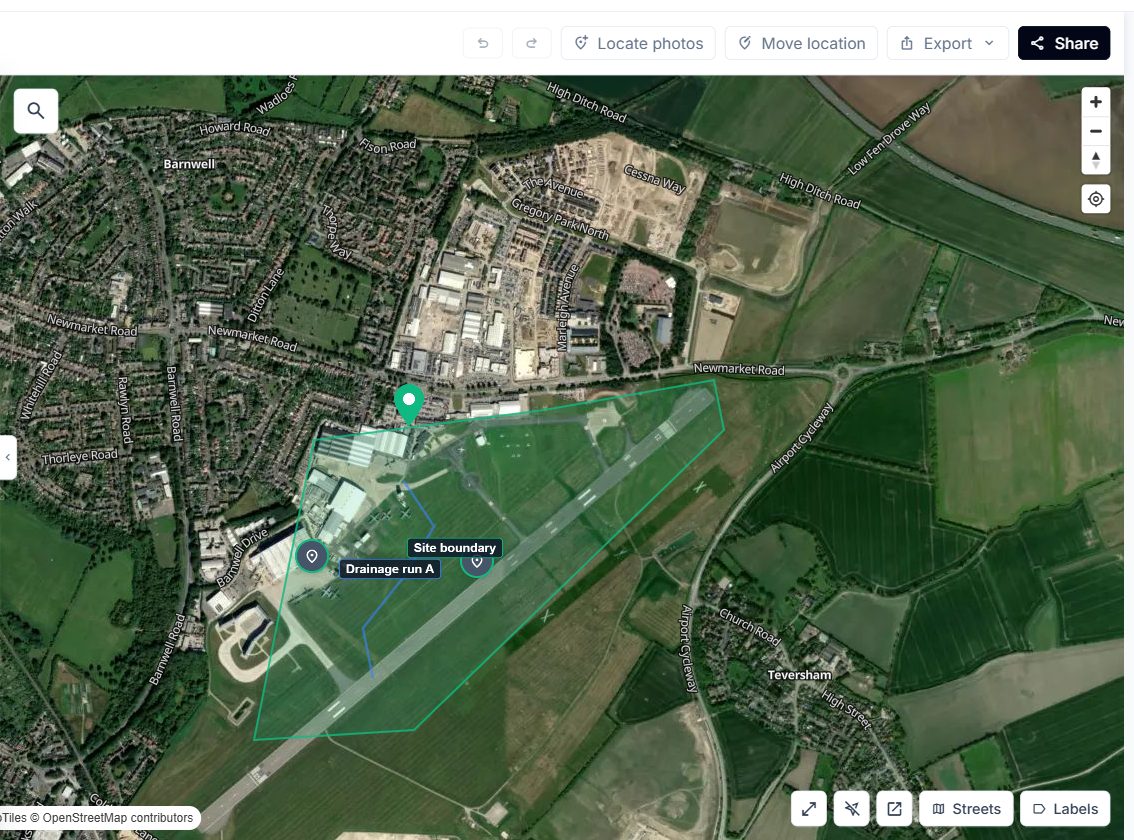
Add a pin
A pin marks a point, and is a POI, PDF, CAD, Point Cloud, Photo or Board. The Pins tab lists them all.
Step 1: Place it
Click Add, choose a type such as Add POI, then click the map where the pin should go. For a file or board pin, choose the file or board when asked.
Step 2: Label it
Type a label. Click the pin later to open its card, where you can edit the label, open Comments, Raise as issue (see Track Work with Issues), Move pin or Delete pin.
Draw a boundary or polyline
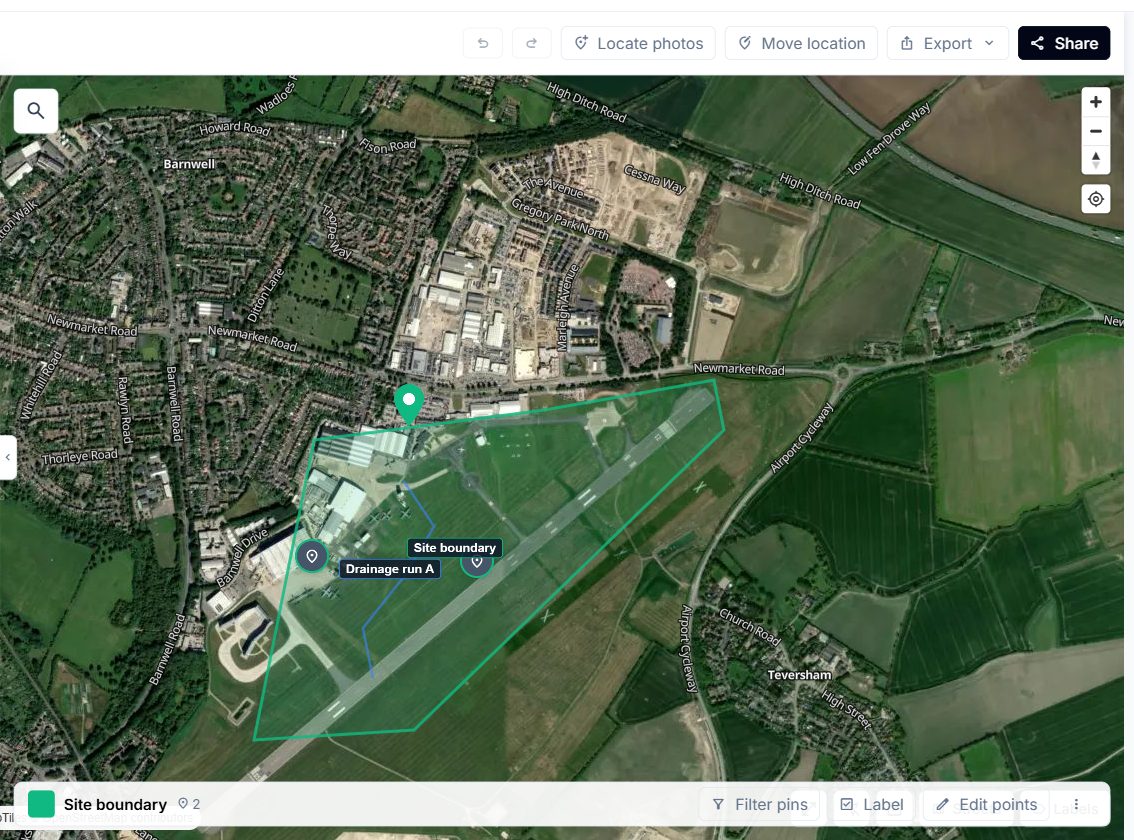
A boundary is a closed outline, such as a site edge. A polyline is an open line, such as a pipe run or road centre line.
Step 1: Draw it
Click Add, then Draw Boundary or Add Polyline, or use the add button beside Boundaries or Polylines in the Layers tab. Click the map to place each point.
Step 2: Finish and save
Double-click the last point, or press Return (on a touchscreen, tap the first or last point). Click Save, which stays greyed out until you’ve added enough points.
Step 3: Edit later
Select it to rename it, change its colour or choose Edit points to drag, delete or extend points. Delete boundary is in the More boundary actions menu. On a polyline, click along the line, then Add waypoint here to add a pin there.
Attach survey video to a polyline
Upload the video to the project first. Then select the polyline, click Attach video and choose the file. Say which end the survey starts at (Starts at A or Starts at B). If the video’s distance counter didn’t start at zero where filming began, enter how far along the line it starts under Counter starts this far along the line. Click Attach video.
A video your browser can’t play, such as an AVI, is converted to MP4. If you could delete the original file yourself and nothing else uses it, you can tick the option to remove it once the MP4 is ready.
Processing runs in the background, and the map and the bell tell you when it’s done (Survey video ready). Select the polyline and click Play video to watch it with a camera marker travelling along the line. If no distance counter was found in the video, it still plays, but no position is shown on the line.
Export to CAD or Google Earth
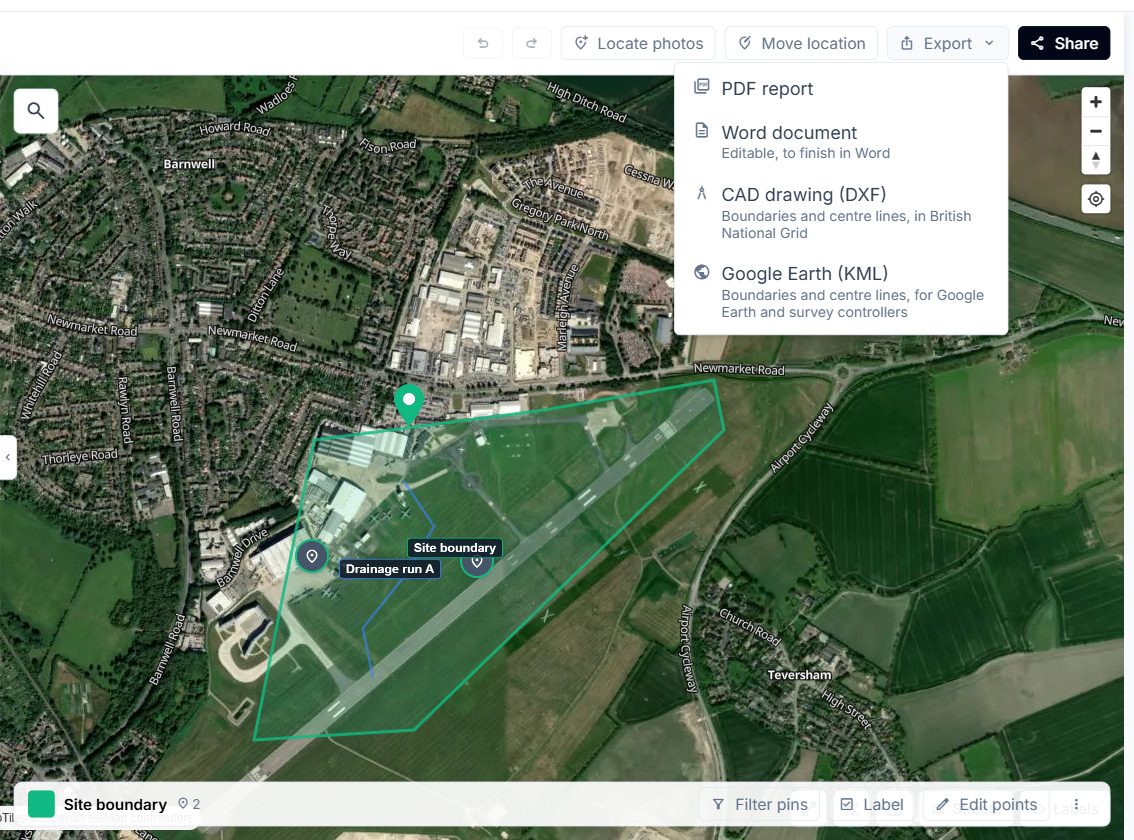
Click Export in the map toolbar and choose CAD drawing (DXF) or Google Earth (KML). The file downloads straight away, for example Project name-map.dxf.
Good to know
- Project Admins can add pins. Admins and Members can export.
- Anyone who can see the project can play survey video. Project Admins can change its start end or counter offset from the more-actions menu under Settings, or remove it. If processing fails, attach it again.
- Exports include boundaries and polylines, not pins, and stay greyed out until you’ve drawn at least one.
- The DXF puts each on its own layer, named
Boundary-orCentreline-plus its label. It uses British National Grid, so it’s only available when everything is in Great Britain (otherwise Needs a project in Great Britain.). The first export may show Preparing CAD drawing… while the grid conversion data loads. If you see Grid conversion unavailable, try again shortly. - The KML keeps names and colours and works anywhere in the world.
- The mobile map has the same views, pins, boundaries and polylines. See Vismo on Your Phone.