
Track Work with Issues
An issue is a comment thread you’ve flagged so the team can track it as Open or Resolved. Use issues to make sure feedback gets acted on. For how comments and @mentions work, see Comments and Mentions.
Raise an issue
Step 1: Open the comments
Open the comments on the file, drawing, map pin, board or project. A thread needs at least one comment before it can be raised, so add one if it’s empty.
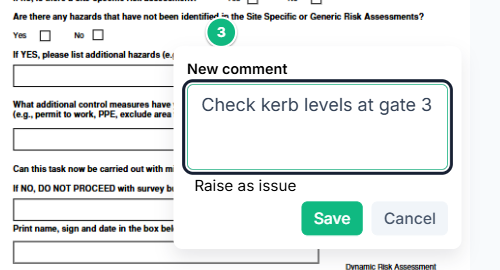
Step 2: Click "Raise as issue"
The thread now shows an Open tag and is listed on the project’s Issues page. You can also tick Raise as issue while you write the first comment, on a drawing, image or in the viewer’s comments panel.
Step 3: Assign people
@mention people in the thread to assign them. They’re shown as Assigned to and get a notification and an email. To unassign someone, edit the comment to remove the @mention, or delete it.
Raise a map pin as an issue
Select a pin on the project map and click the flag button (Raise as issue). Enter a Title, then optionally a Description, Assignees and a Status of Open or Resolved, and click Raise issue. When you drop a new pin, tick Raise as issue in the banner at the top. See Use the Project Map.
Resolve and follow issues
Click Resolve beside the status tag. It changes to Resolved and the button becomes Reopen. You can do the same from each row of the Issues page.
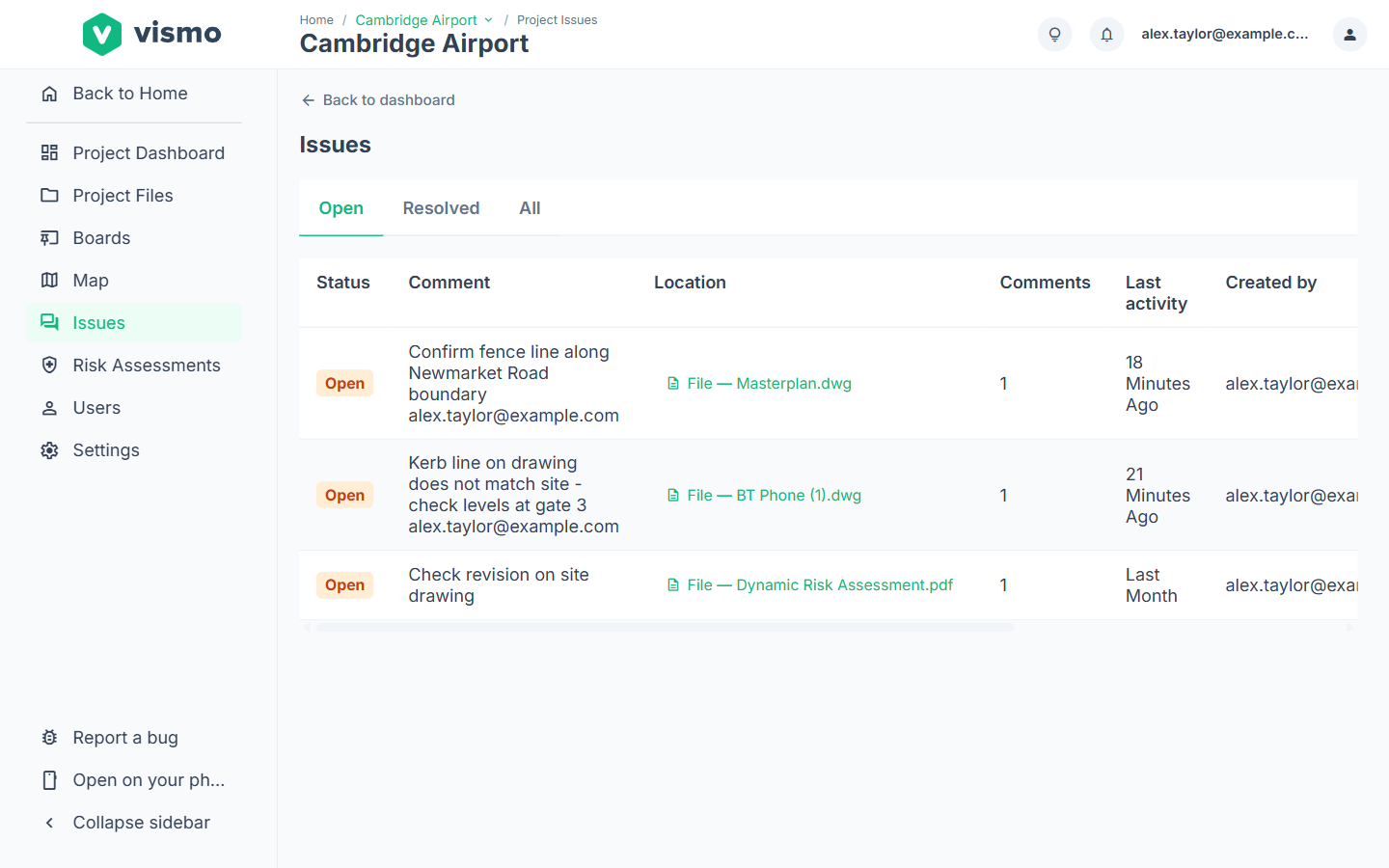
Click Issues in the project’s left-hand menu and use the Open (default), Resolved and All tabs. Each row shows the status, location (click to open it), comment count, last activity, creator and assignees. If there are more than 20 issues, click Load More.
On your phone
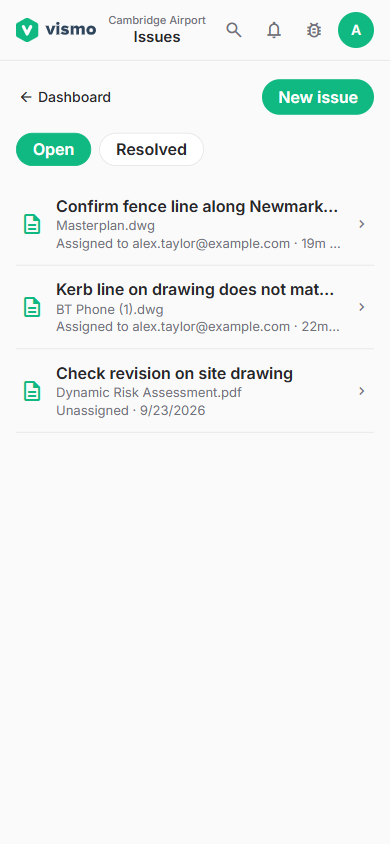
In the mobile app (see Vismo on Your Phone), tap Issues in a project to see them. On a comment thread, tap Resolve to resolve an issue and Reopen to reopen it. To see issues assigned to you across all projects, tap your picture, then Assigned to me. Tap New issue, or Report issue on the map, to pick a spot, enter a Title, tap Assign someone, and tap Raise issue. Tick Already resolved if it’s fixed.
Good to know
- Admins and Members can raise, resolve and reopen issues. Viewers can see them but not change them. Limited users don’t get Issues.
- A project Admin can turn Issues off, or back on, in Settings > Features. When it’s off, the Issues link and Raise as issue buttons are hidden.
- Only people who can see the item can be assigned.
To be told when issues are raised, assigned or updated, see Notifications.