
Notifications
Vismo keeps you up to date on your projects through the notifications bell and by email. You choose what you hear about by watching projects.
Read your notifications
Step 1: Open the bell
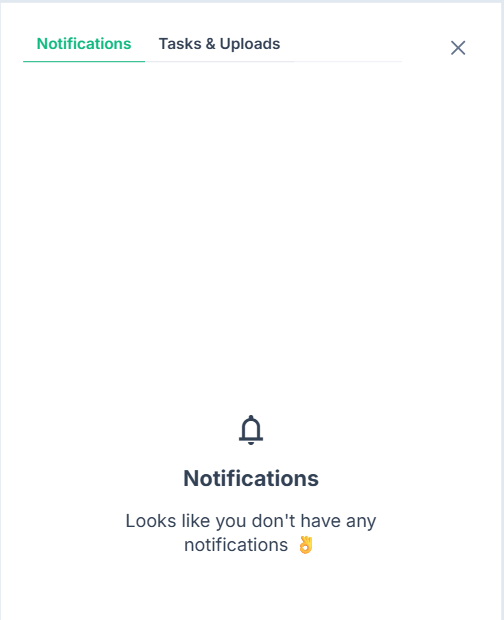
Click the bell in the top bar (hover text: Activity & Notifications). A red number counts your unread notifications. The Notifications tab shows activity and invitations, and Tasks & Uploads shows uploads, ZIP downloads and conversions in progress.
Step 2: View or dismiss
Project activity notifications have View (opens the item) and Dismiss (removes it). Opening the panel marks your mentions and “ready” notifications as read.
What you’ll be told about
You always get You were mentioned (see Comments and Mentions), Invited to project or Invited to organisation (click Accept or Reject), Join request for a project you administer (click Review), the result of your own join requests, and Survey video ready (see Use the Project Map).
For projects you watch, you also get New files, New comment, Issue raised, Issue assigned, Issue updated (see Track Work with Issues), New board and New map pin.
Watch a project
Step 1: Click the bell on the project
In the row of buttons at the top of the project dashboard, click the bell button (hover text: Watch). You start watching straight away, with File changes and Comments ticked and email off.
Step 2: Choose what to be told about
In the You are notified about: panel, tick File changes, Comments, Issues (raised, assigned, status changed), New boards or New map pins. Each tick saves immediately. Tick Also email me to get emails for the same activity.
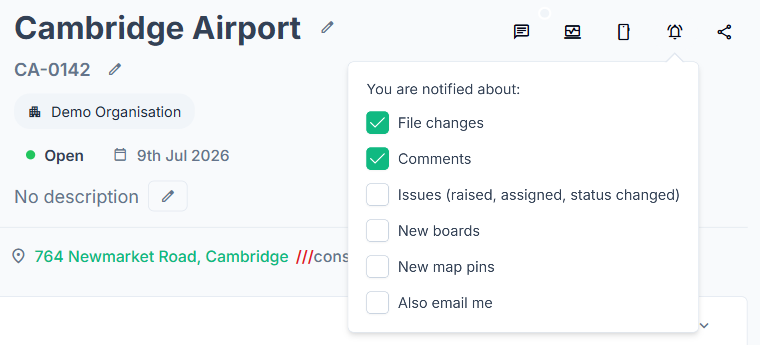
To stop watching, click the bell again (hover text: Watching — click to stop) or untick everything. To change your choices, stop watching and click the bell again.
Good to know
- Watching is set per project. Vismo has no account-wide notification setting, and you only hear about a watched project while you’re a member.
- You always get an email for mentions, invitations and join requests to projects you administer. Mentioning yourself doesn’t notify you.
- On the Projects page, pinning a project opens a Notifications for panel with the same options. Click Watch or Not now. Unpinning never changes your watch.
- On your phone, tap the bell for notifications by day, then Mark all read. Tap a project’s bell (Watch this project) for the Project notifications sheet. See Vismo on Your Phone.