
Vismo on Your Phone
Vismo has a phone version built for site work. It’s a web app, so there’s nothing to download from an app store. Open it in your phone’s browser, sign in with your usual account, and add it to your home screen if you like.
Open Vismo on your phone
Step 1: Go to the address
On your phone, open app.vismo.io/mobile in the browser.
Step 2: Or scan a QR code
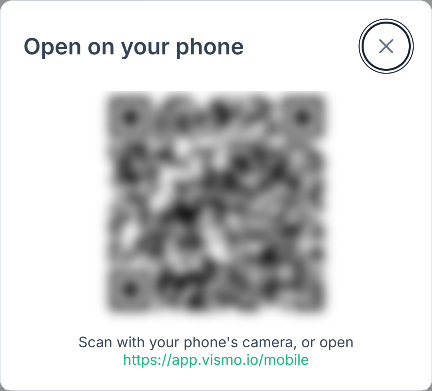
From a computer, open a project and click the phone button at the top of the dashboard (hover text: Open on your phone). Scan the QR code, or open the link below it. If you were in Project Files or the map, it opens that page. From any other project page it opens the project.
Add Vismo to your home screen
After a few visits, or your first upload, Vismo offers to add itself.
- Android (Chrome or Edge): tap Install Vismo.
- iPhone and iPad (Safari): tap the Share button, then Add to Home Screen. The hint only appears in Safari, so open Vismo there first.
What you can do on your phone
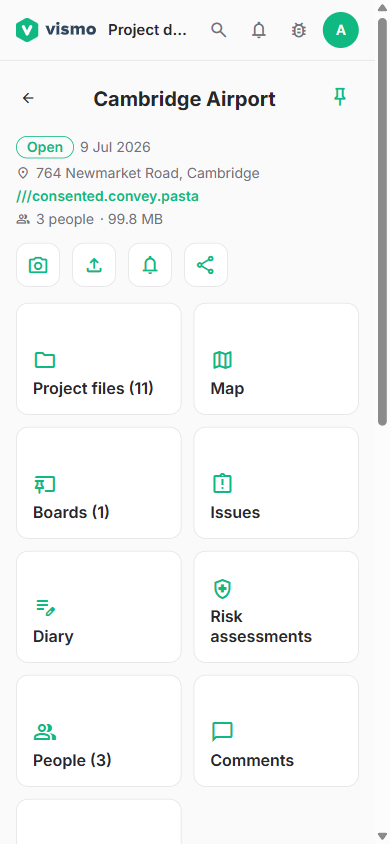
Each project’s home screen has two quick actions, Take photo and Upload file, and tiles for its other sections.
- Projects: search, sort, filter, or tap Near me. Tap + for New project, or Browse organisation projects.
- Take photo: rename, rotate, crop or retake before uploading. A GPS icon shows when your phone has found its location, and you can change the destination folder.
- Upload file: pick files and rename each before uploading.
- Map: switch between Satellite and Streets, Measure, Add pin, draw boundaries and polylines, and Report issue. A photo taken from the map is pinned where it was taken. See Use the Project Map.
- Diary: tap Today’s entry. See Diaries and Site Diaries.
- Risk assessments: tap New assessment. See Complete a Dynamic Risk Assessment.
- Issues and the bell: see Track Work with Issues and Notifications.
Good to know
- Uploads run in the background, and a status bar shows what’s queued. Without signal it shows Waiting for signal and carries on when you’re back online. Open it to retry or remove any uploads that failed.
- Diary and Risk assessments only appear when switched on for the project. A project Admin can turn them on in Settings > Features.
- Changing the map needs the Admin or Member role. Viewers can look but not change things.
- On a phone-width screen the portal shows a Use the Vismo app bar. Tap Open to switch, or the cross to dismiss it.
- Your account, projects and files are the same on the phone and the computer.