
Diaries and Site Diaries
Vismo has two things with “diary” in the name. Diaries are tables on the Home page that track many projects at once. A project’s Site diary is a daily record you fill in on your phone, saved as a PDF.
Diaries: track many projects in one table
A diary lists your projects down the side, with columns you choose, such as a deadline or a status.
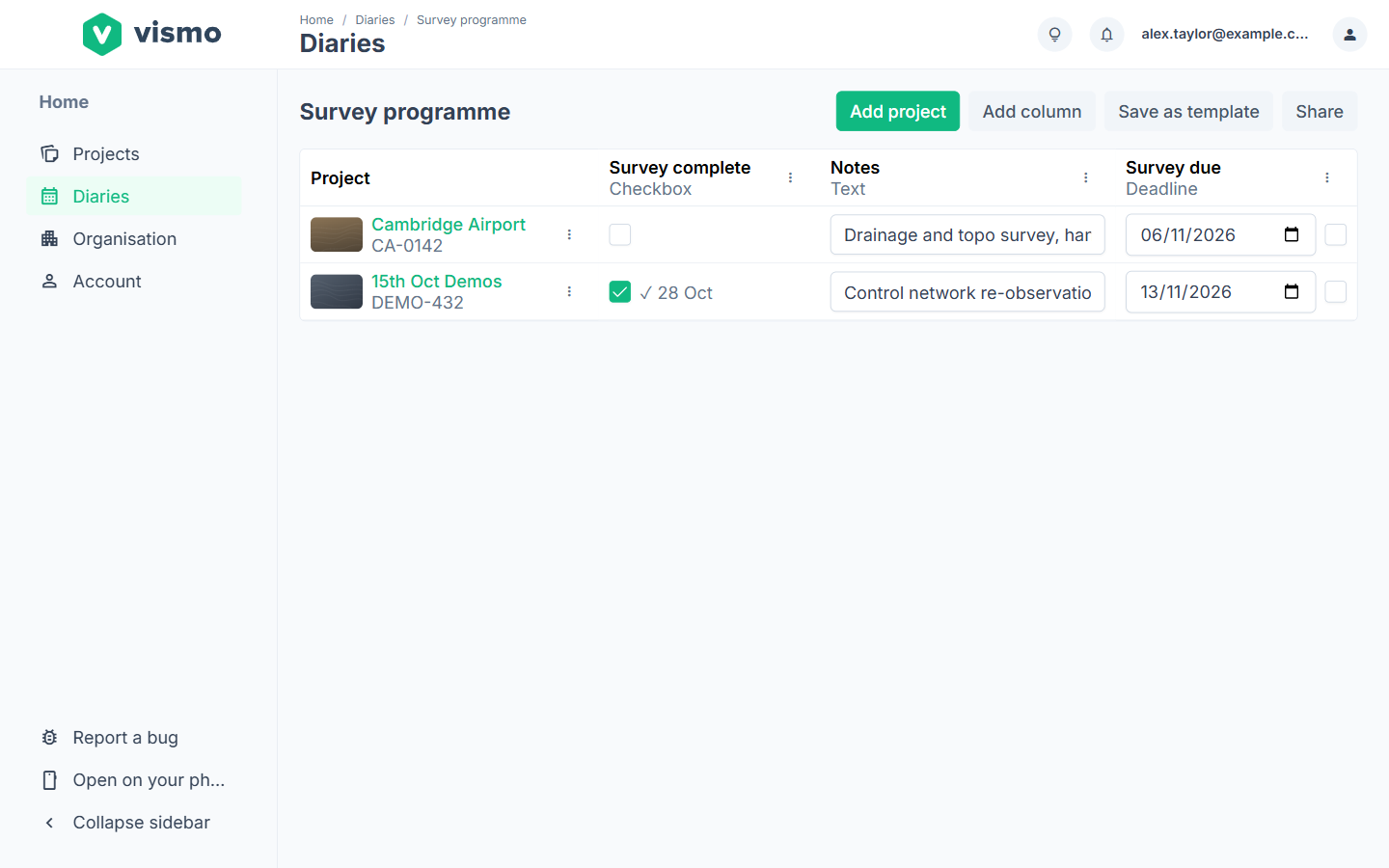
Step 1: Create a diary
On the Home page, click Diaries in the left-hand menu and type a name under New diary name. Pick a saved template from the Template list, or leave it on Blank, then click Create diary.
Step 2: Add projects
Click Add project, search by name or number (at least two characters) and click Add. To remove one, open its row options and choose Remove from diary. Move up and Move down change the order.
Step 3: Add columns
Click Add column, enter a Name and choose a Type:
- Checkbox: a tick, with the date it was done.
- Deadline: a due date with a done tick. Overdue ones are highlighted.
- Text, Number and Date
- Status: one option from a list you set up, each with a name and colour.
- Person: one of the people with access to the diary.
Use the options button on a column heading to Edit column, Move left, Move right or Delete column. Changing a column’s type, switching between Date and Deadline, or removing a status option clears the cells it affects, so Vismo asks you to confirm.
Step 4: Fill in cells and share
Click a cell to fill it in. Changes save as you go. To share, click Share, enter email addresses, choose Editor (can change projects, columns and cells) or Viewer (can look only) as the Role, and click Share.
Site diary: record each day on your phone
The site diary is part of the mobile app. See Vismo on Your Phone.
Step 1: Start today’s entry
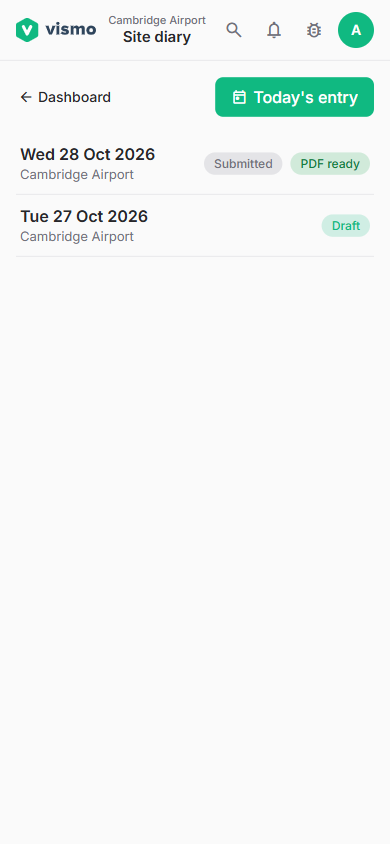
Open the project in the mobile app and tap Diary. Entries are listed newest first, marked Draft or Submitted. Tap Today’s entry, which reopens today’s draft or starts a new one.
Step 2: Fill it in
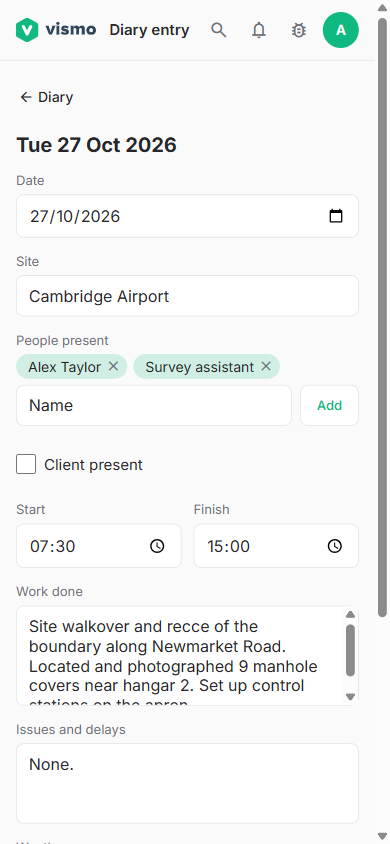
Complete Date, Site, People present (type a name and tap Add), Client present and Client name, Start and Finish times, Work done, Issues and delays and Weather. Add up to 50 photos with Take photo or From project files. Changes save automatically, with Retry if Couldn’t save shows.
Step 3: Submit
Tap Submit, then confirm. Vismo saves a PDF in the project’s Site Diaries folder. The entry shows PDF queued, PDF generating, then PDF ready, and you can tap Open PDF (or Retry if it fails).
Good to know
- You own the diaries you create. Only the owner can rename, share or delete one, and deleting it removes it for everyone it’s shared with. Click Leave on a diary shared with you.
- You can only add projects you can open. If someone can’t open some of a diary’s projects, Vismo warns you before sharing, and they see only names and numbers marked No access. Removing someone under People with access clears any Person cells that name them.
- Save as template saves a diary’s columns, not its projects. To delete a template, use the Template list when you create a diary. Diaries already made from it aren’t changed. A project’s dashboard also shows its row from each diary you’re in.
- The site diary is off for new projects. A project Admin turns on Site Diary in Settings > Features. Admins and Members write entries, Viewers read them, and Limited users don’t get it. The finished PDFs are in the project’s files.
- A submitted entry can’t be edited, and photos still uploading when you submit won’t be in the PDF. Tap Delete on a draft. A submitted entry can only be deleted by its author or a project Admin.