
Complete a Dynamic Risk Assessment
A dynamic risk assessment is a short form you complete after an initial site inspection and before starting work. In Vismo you fill it in on the project, sign it off and save it as a PDF in the project’s files.
Step 1: Open Risk Assessments
Open the project, select Risk Assessments in the left-hand menu and click New Risk Assessment.
Step 2: Fill in the form
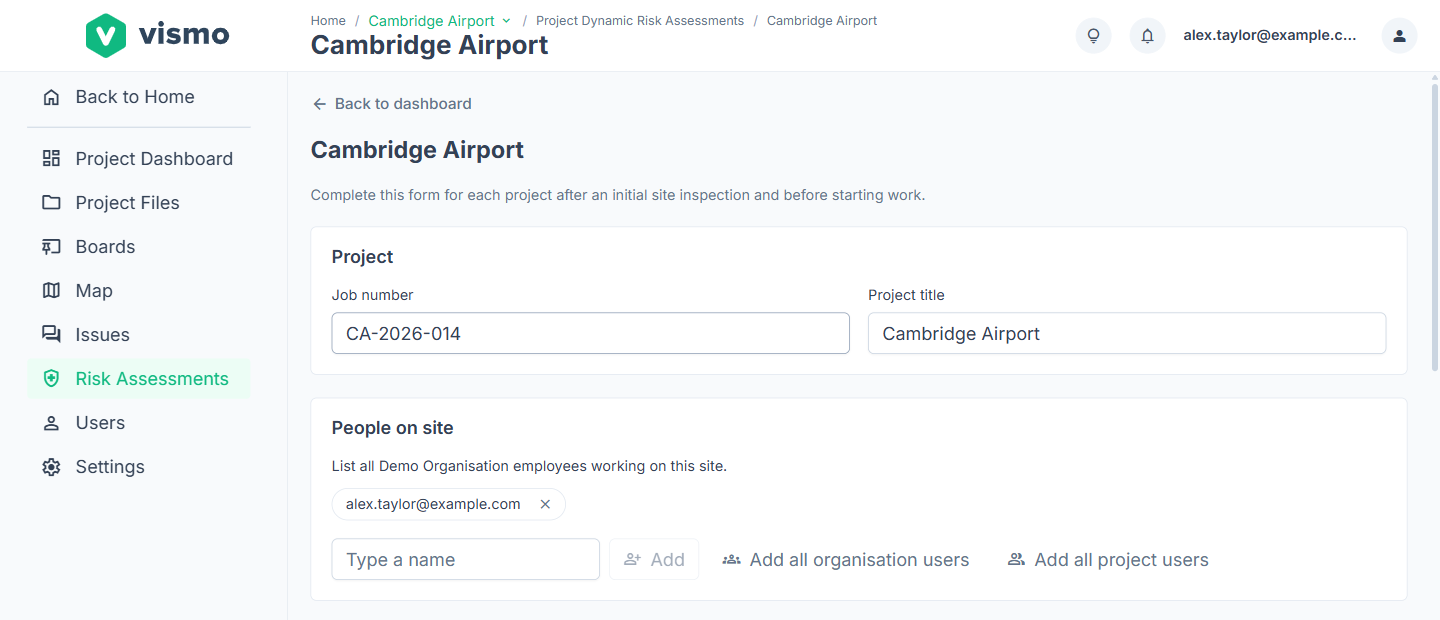
Vismo starts you off with the project’s number and name, you as the only person on site, and today’s date, all of which you can change. Every question is optional, so you can save part-way through and come back later.
- People on site: type a name and click Add, or click Add all organisation users or Add all project users (up to 100 people).
- Activities and people at risk: tick the survey or activity (for example Topographical, Utility Survey or Setting Out) and who might be harmed (Public, Colleague, Sub-Contractor or Site Staff). Use Other (please state) for anything not listed.
- Hazards and controls: answer whether your generic and site-specific risk assessments cover every hazard, then list any additional hazards and the controls you’ve taken.
- Can this task now be carried out with minimal risk to yourself and others? If you choose No, Vismo shows a DO NOT PROCEED warning. Record your reasons and refer to your Line Manager.
Step 3: Sign off and save
Under Sign-off, enter your Print name and the Date. You can also draw your signature and click Use this signature (or Clear signature). Click Save assessment.
Step 4: Generate the PDF
Click Generate PDF. The status beside the button moves from queued to generating to complete, then click Open generated PDF. It’s saved in Project Files, in a Dynamic Risk Assessments folder, named “DRA”, the project title and the date.
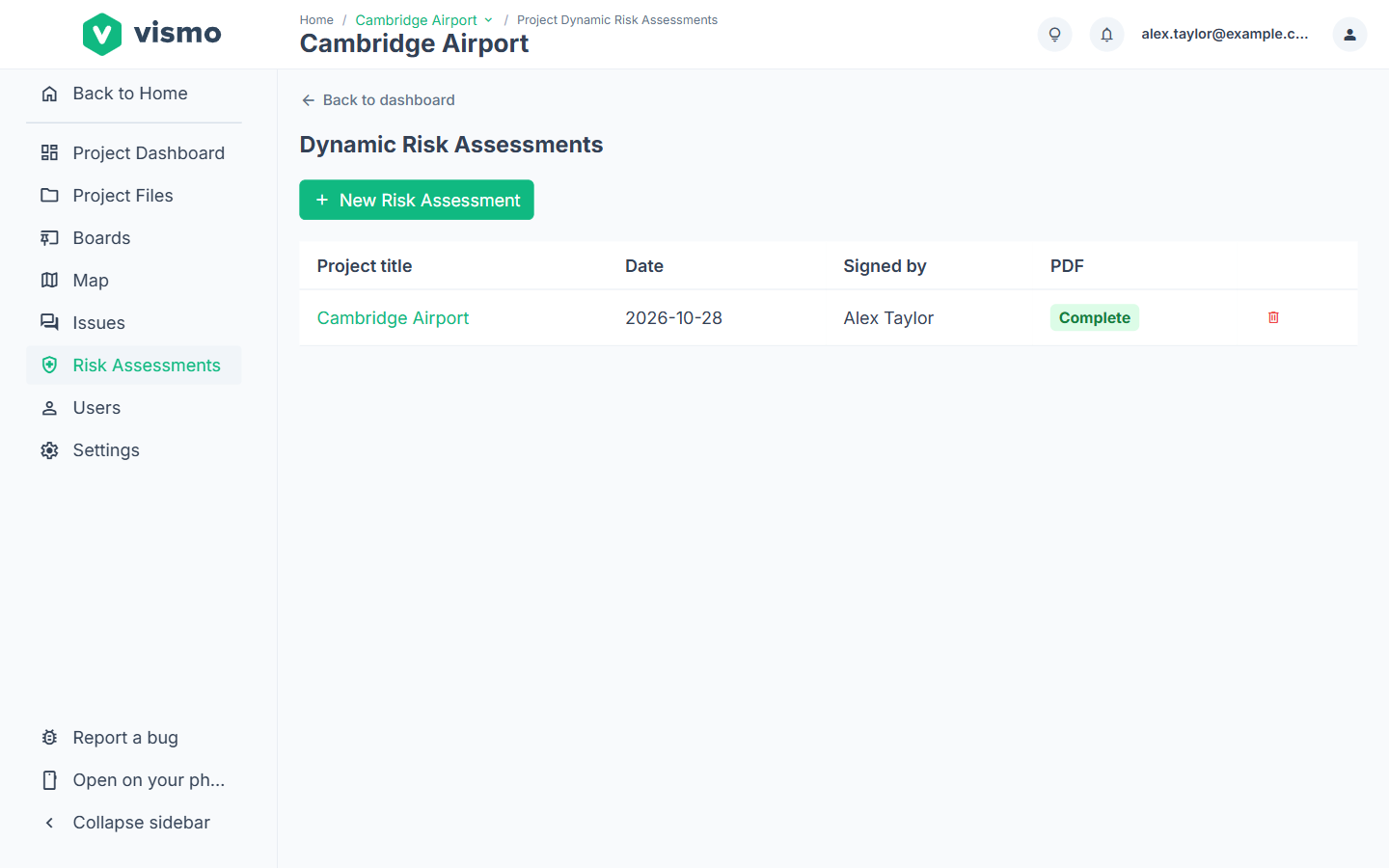
The Risk Assessments page lists each assessment with its Date, Signed by and PDF status. Click a title to open it.
Good to know
- Project Admins and Members can create, edit and delete assessments (bin icon at the end of a row). Viewers can only open them.
- If you can’t see Risk Assessments, a project Admin can turn on Dynamic Risk Assessments in Settings > Features, in the portal or the mobile app. See Change Project Settings.
- The PDF only needs the Print name and Date. Longer answers run on to extra pages. You can’t edit the assessment while the PDF is queued or generating.
- If you change an assessment after its PDF is complete, it shows Stale. Click Generate PDF again to replace the PDF.
- On your phone, choose Risk assessments then New assessment. The questions are split into five steps (Next and Back), and Generate PDF then View PDF at the end.