
CAD Drawing Outputs
A DWG or DXF file can’t be opened directly in a browser, so Vismo turns it into one or more outputs that you can view, comment on and add to boards. Your original file is never changed, and you can always download it from Project Files.
Step 1: Create an output
Uploading a drawing doesn’t create outputs by itself. Open the file and click View File to create the recommended output, or Process for viewing to choose. See View CAD, Images, and More.
Step 2: Choose the right output
Vismo only offers options that suit your file, and marks the one it recommends. Where highest detail is offered, it recommends standard for smaller drawings and highest detail for large ones (25 MB and over).
| Output | What it is | Best for |
|---|---|---|
| 2D drawing (standard) | A flat image (PNG). Quickest to make. | Small and medium drawings, or an image to download. |
| 2D drawing (highest detail) | A zoomable drawing that stays sharp, plus a flat image. Slower. | Large or detailed drawings. |
| 2D drawing (high detail) | A zoomable, tiled drawing, offered instead of highest detail in some cases. | The same. |
| 2D drawing with sheets | Model space plus every paper-space sheet, each made separately. Slower. | Drawings where you need the sheets. |
| 3D CAD | An interactive 3D model from the drawing’s geometry. | Drawings with 3D geometry. |
Step 3: View and download
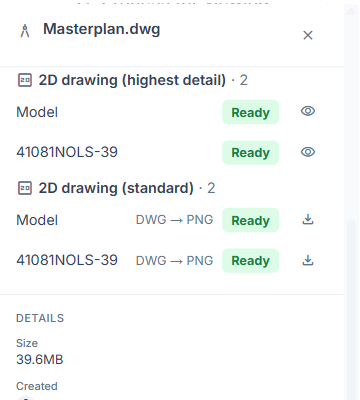
Open the file and look under Outputs. Each row is one layout (Model or a sheet), with its status: Waiting, Processing (with a percentage), Ready or Failed. Click the eye icon (View output) to open it, or the download icon (Download output) to save it.
Good to know
- A flat image opens quickly but blurs if you zoom far in. A zoomable drawing is drawn in pieces, so it stays sharp.
- High detail and highest detail outputs have no download button. The flat image and 3D CAD can be downloaded, unless downloads are restricted for you on the project.
- On a board, a drawing is placed as 2D image or Vector tiles (the highest detail output). High detail can’t be placed on a board. See Build a Board.
- If Vismo can’t make highest detail, it prepares a standard one instead. If a drawing can’t be made at all, the row shows Failed. Hover to see why, or choose Process for viewing to try again.
- A new version of the drawing (see File Versions and History) remakes its outputs. Until then you may see Showing a previous version of this file.