
Public Links 🔗
Share data, projects, and views without requiring a login
Vismo makes sharing easier than ever. You can generate secure public links for specific files, entire projects, boards, or views - allowing others to view content without needing to log in. Anyone with a public link can view what it shares, but can’t change anything.
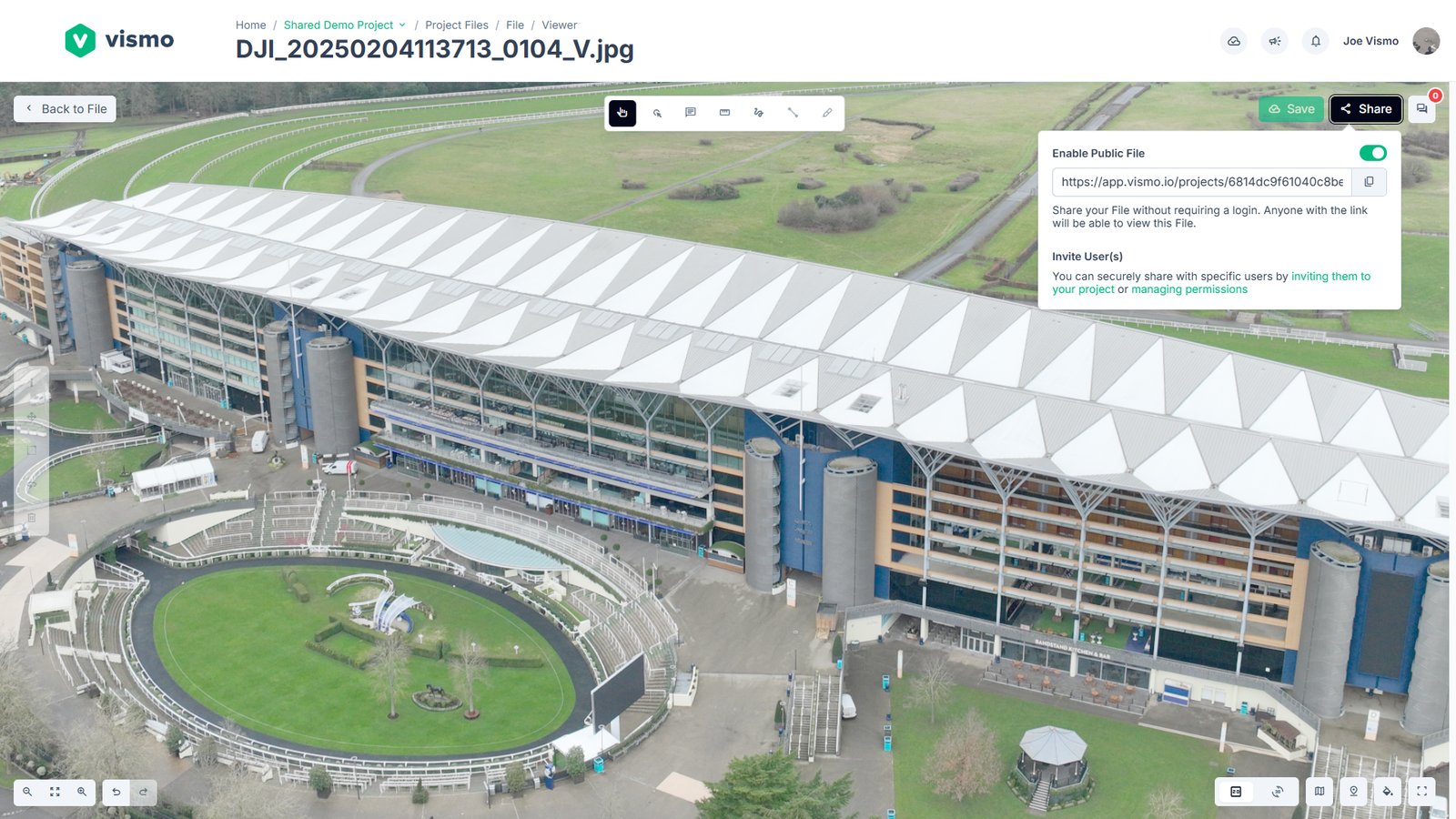
1. Share Specific Files
Step 1: Navigate to the file
Open the file you want to share.
Step 2: Click the Share button
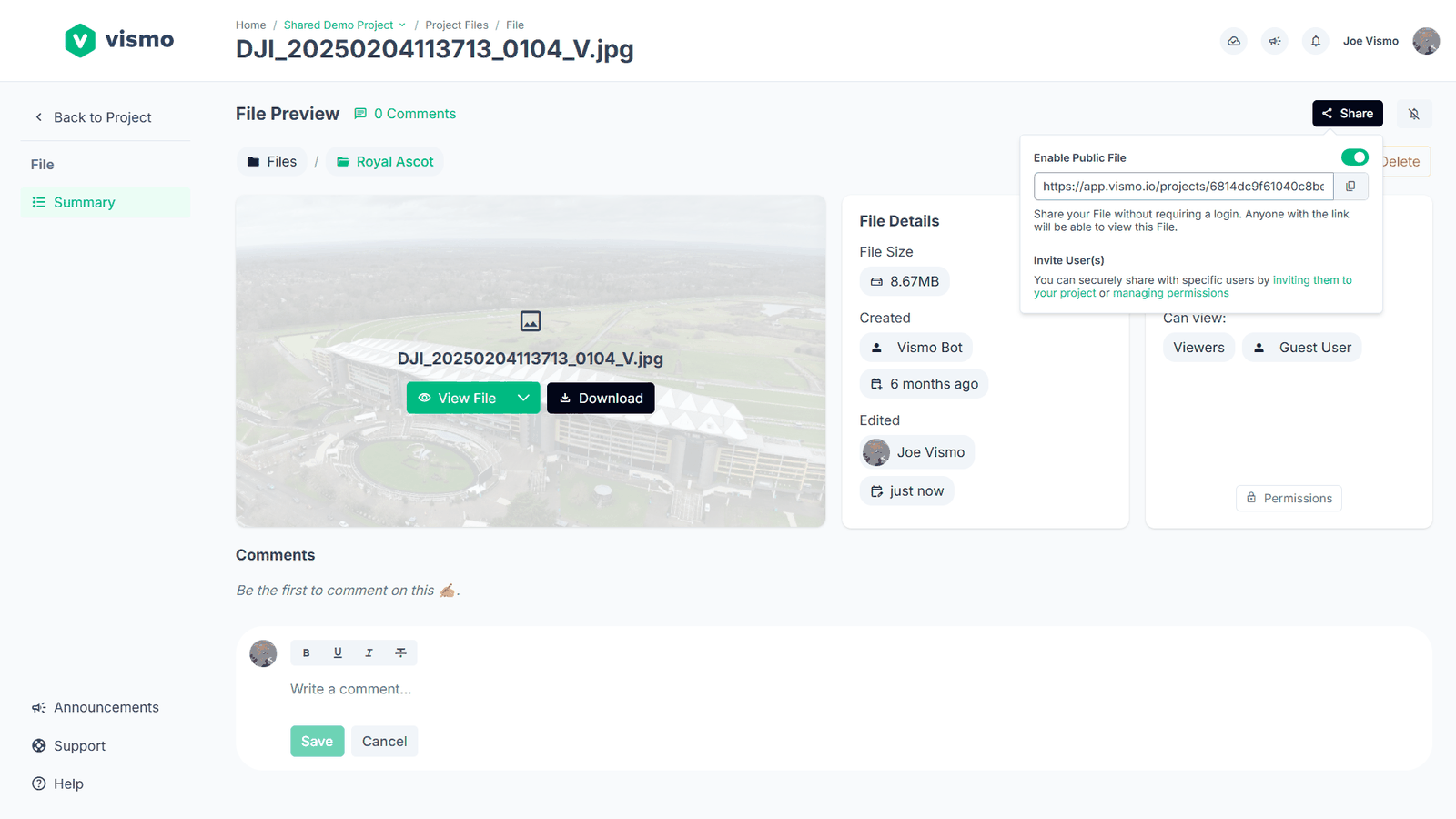
Click Share at the top of the file’s page. You can also choose Share from the file’s options menu in Project Files.
Step 3: Enable public access
Toggle Enable Public File to generate a shareable URL.
Step 4: Copy and share the link
Use the copy button next to the link to copy it, and share it wherever you like.
Step 5: Test the link
You can test the public link by opening it in an incognito or private browser window.
Note: If you'd prefer to share with someone as a project user instead, invite them to the project. They’ll need to sign in with a verified email address.
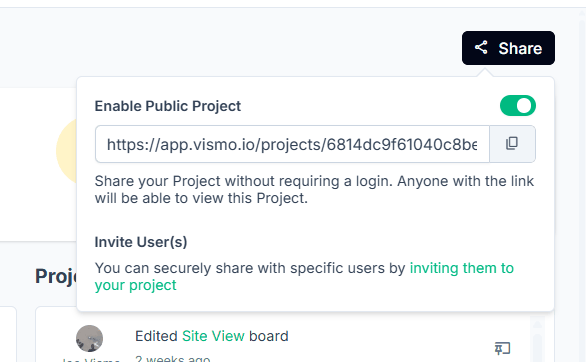
2. Share an Entire Project
Public projects are available on any paid plan.
Step 1: Navigate to the project
Open the project you want to share.
Step 2: Click the Share button
Click Share on the Project Dashboard. You’ll also find the project’s public link in Settings, on the Features tab.
Step 3: Enable public access
Toggle Enable Public Project to generate a shareable URL. Anyone with the link can view everything in the project.
Step 4: Copy and share the link
Use the copy button to copy the link and share it wherever needed.
Step 5: Test the link
Try opening it in an incognito browser to confirm the public view.
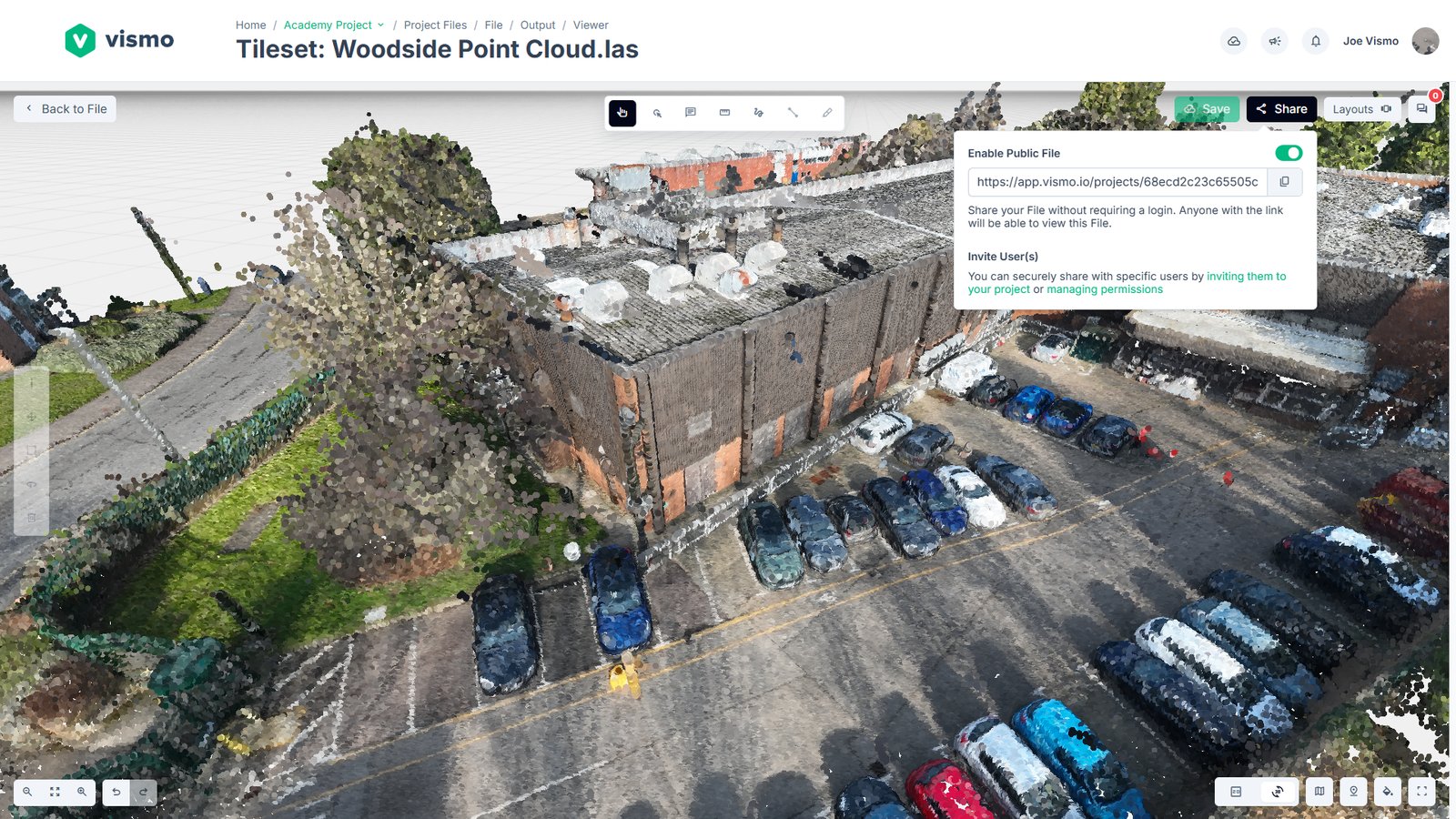
3. Share a View
Step 1: Open the viewer
Open a file in the Vismo viewer, or open a board - for example an image, a drawing, or a point cloud.
Step 2: Click the Share button
Click Share in the top-right corner.
Step 3: Enable public access
Toggle the Enable Public switch to generate a public share URL.
Step 4: Copy and share the link
Use the copy button to copy the link and share it wherever you like.
Step 5: Test the link
Open it in an incognito window to confirm public access.
Stop sharing
To stop a public link working, switch Enable Public off. You can also generate a new link with the refresh button next to it - the previous link stops working straight away.
Last reviewed 28 October 2026