
File Versions and History
When you upload a new version of a file, Vismo keeps the earlier ones, so you can look back through its history, download an old version or bring one back.
Step 1: Open the Versions list
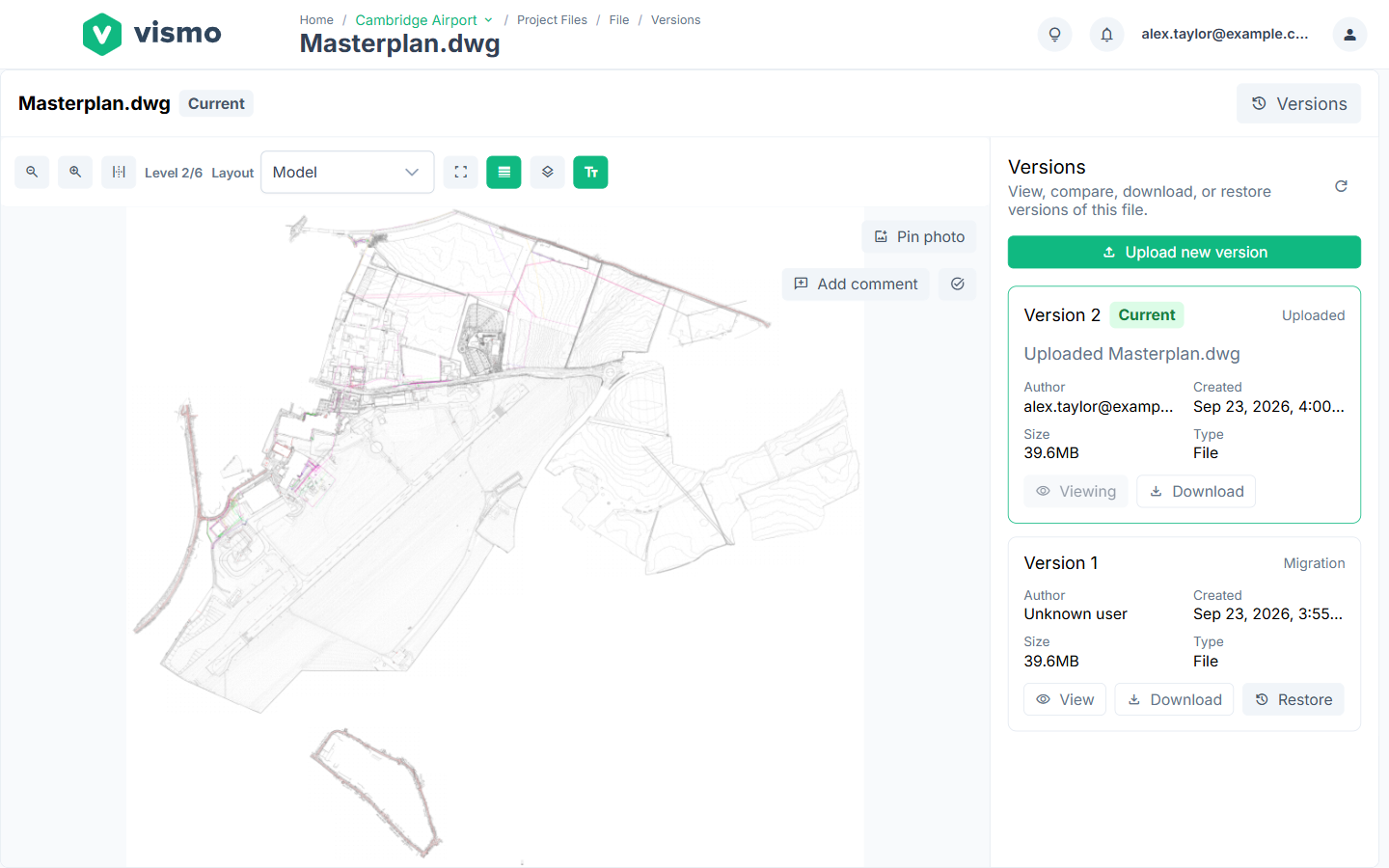
Open the file from Project Files and click Versions. The list shows every version, newest first, with who uploaded it, when, its size and its type. The latest is marked Current.
Step 2: Upload a new version
Click Upload new version and choose the file from your computer. Or upload a file with the same name, and choose Upload new version when Vismo asks what to do. See Upload Files. The new version becomes current as soon as it has uploaded, with no need to publish it.
Step 3: View or download an earlier version
Click View on the version you want. It opens read-only, with a heading such as Version 2 · Read only. Click Back to current to return. To save it instead, click Download.
Step 4: Compare two versions
For plain text files (such as TXT, CSV, JSON, MD and XML), tick two versions and click Compare selected to see what changed.
Step 5: Restore an earlier version
Click Restore beside the version you want, read the message and click Restore version. Vismo makes a new version from the old one and sets it as current. The version you replaced stays in the list.
Good to know
- You need permission to edit the file to upload a new version or restore one. You can’t restore the version that is already current.
- If downloads are restricted for you on the project, Download is disabled. See Project User Roles & File/Folder Permissions.
- Not every file type can be shown in the browser as an earlier version. For some, such as CAD drawings, Vismo shows Download version instead.
- For files Vismo processes for viewing, such as drawings, the processed views are rebuilt from the new version. Until that finishes you may see Showing a previous version of this file.
- If someone else uploads a version while your Versions list is open, click the refresh icon to update it.