
Search for Files
Use the search box in Project Files to find files and folders without clicking through every folder.
Step 1: Open the search box
Open your project and go to Project Files. The search box, labelled Search or #tag, sits above the file list. Type what you’re looking for. Results appear as you pause typing, or straight away when you press Enter. Click the x in the box to clear the search.
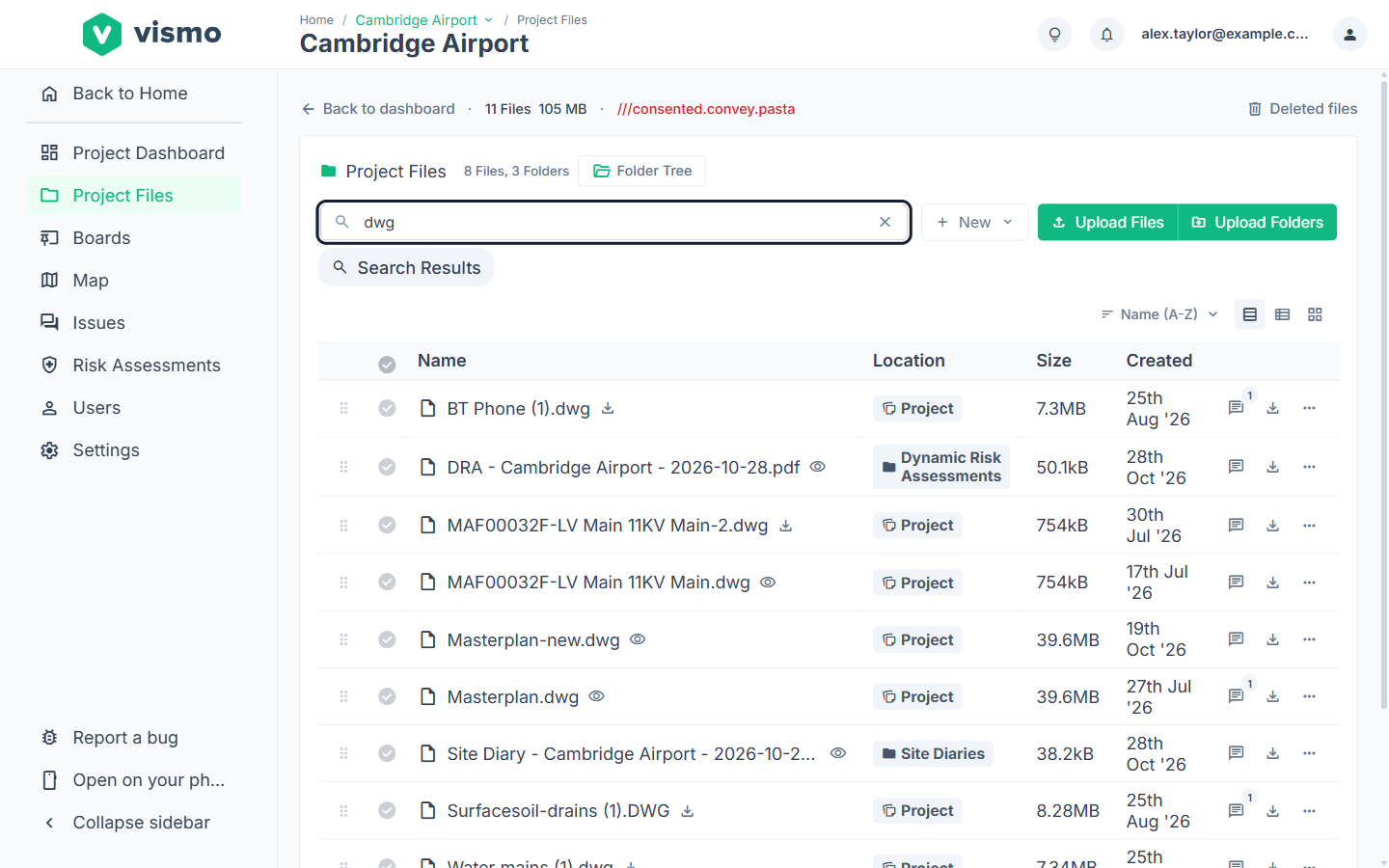
Step 2: Search by name
Vismo matches the start of any word in a file or folder name, ignoring capital letters. For example, plan finds “Floor plan.pdf” and “Planning notes.docx”, but not “Masterplan.dwg”. floor pl finds “Floor plan.pdf”, because words need to be in the same order, next to each other.
Step 3: Search by tag
Start with # to search tags only. For example, #survey finds items with a tag containing a word starting “survey”. Plain searches match tags as well as names.
Step 4: Open a result
Results are flat, with a Location column showing each folder and a breadcrumb reading Search Results. Click a file to open it as normal, or use its options menu.
Good to know
- Search covers the whole project, not just the current folder, and you only see what you have access to.
- To tag an item, open its options menu, choose Tags and type in the Add a tag… box. You need permission to rename the item.
- In some projects, search also finds files related to your words by meaning, even if the exact words aren’t in the name. It looks at the file name, its folder name and its tags, not what’s inside the file.
- Name and tag matches come first, then meaning matches. While they’re showing, you can sort by Relevance. Meaning search isn’t used for searches that start with #.
- Meaning search doesn’t run in every project, such as projects with a lot of files, or when the service is busy or unavailable. Search then falls back to names and tags with nothing for you to do.
- If a search finds nothing, try a shorter word, or check that the file’s name or tag begins with the word you typed.