
Build a Board
A board is a workspace where you bring your project’s drawings, PDFs, 3D models, point clouds and 360° tours together on one map.
Create a board and add things to it
Step 1: Create the board
Open your project, select Boards in the left-hand menu and click Create Board. Enter a Board name. If the project has a location, choose whether to Use your project’s location and pick a basemap. Tick Include Map assets to show the project map’s pins, lines and areas. Click Create.
Step 2: Add objects
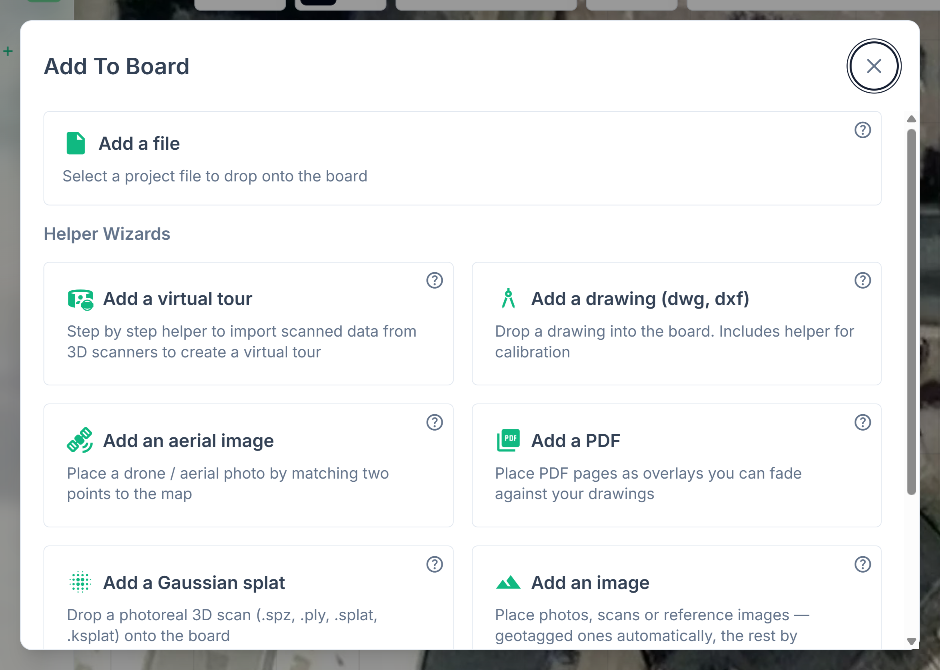
Click Add object to board (the + button). Click the ? on a card in Add To Board for more detail:
- Add a file, Add an image, Add an aerial image (matching two points on the image to two on the map) and Add a Gaussian splat (up to 300 MB).
- Add a virtual tour: see View 360 Panoramic Images.
- Add a drawing (dwg, dxf) and Add a PDF: see below.
- Add a 3D model: GLB, OBJ or IFC, placed on a pin with a heading and scale. A model exported with Z up lands on its side, so stand it up with Rotate.
- Add a point cloud: LAS, LAZ, E57 or ZIP. Files that can’t be shown as they are get converted to 3D Tiles first.
Place a drawing or PDF page
Step 1: Choose what to place
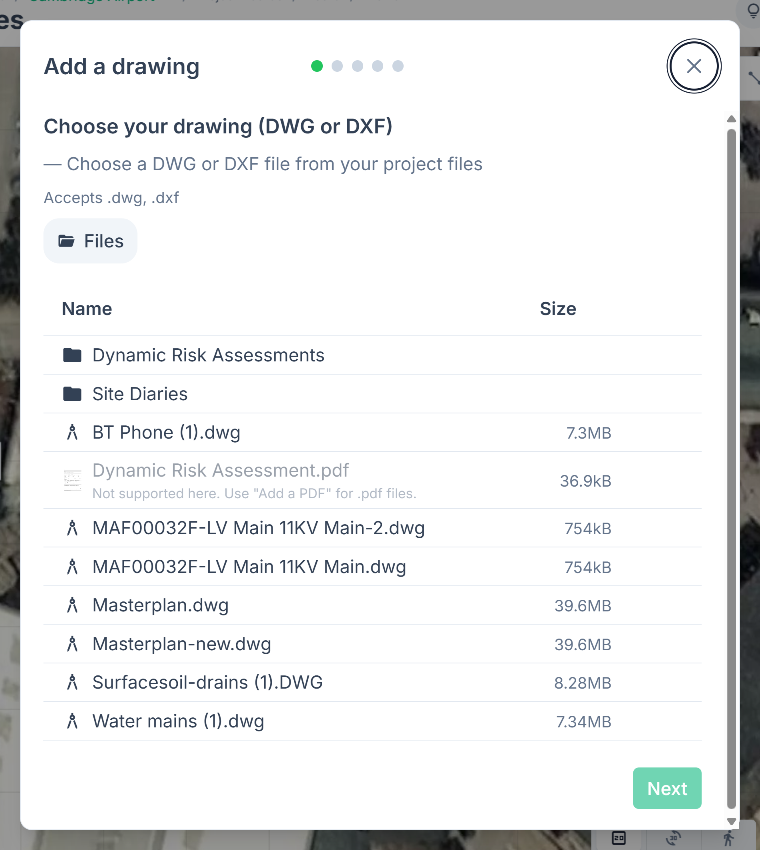
Choose Add a drawing (dwg, dxf) and pick the file. Or choose Add a PDF, pick the PDF, then the page. You place one page at a time.
Step 2: Check and crop
For a drawing, Drawing details shows what Vismo found. You can rename it, choose the Layout and override the units. See CAD Drawing Outputs. Then click Crop to trim it, or Next to keep all of it.
Step 3: Set the location
If the board has no location yet, choose a place or search for one. Choosing I do not wish to set a location means it isn’t placed on a real-world position. Then choose Align with two points (pick two points on the drawing and the matching two on the map) or Use the drawing’s location if it has its own. A PDF page is always placed with two points: pick two on the page and the matching two on the map.
Step 4: Fine-tune and finish
On Scale, position & orient, use the Adjust arrows to move, rotate and scale it, then click Finish (Place & finish for a PDF). To change it later, see Scale, Rotate, Transform.
Good to know
- If you pick a DWG or DXF through Add a file, Vismo opens the drawing wizard for you.
- Project Admins and Members can create boards. Viewers and guests can’t.
- Changes aren’t kept until you click Save board (the save icon). Its tooltip reads Save changes or Board is up to date, and Vismo asks you to confirm if you leave with unsaved changes.
- A placed PDF page is an overlay in the Board objects panel. Point at its row to fade it in and out over what’s already on the board, or use its Opacity slider.