
Find and Join Projects
Your Home page shows the projects you belong to, and helps you discover other projects in your organisation that you can join.
Find your projects
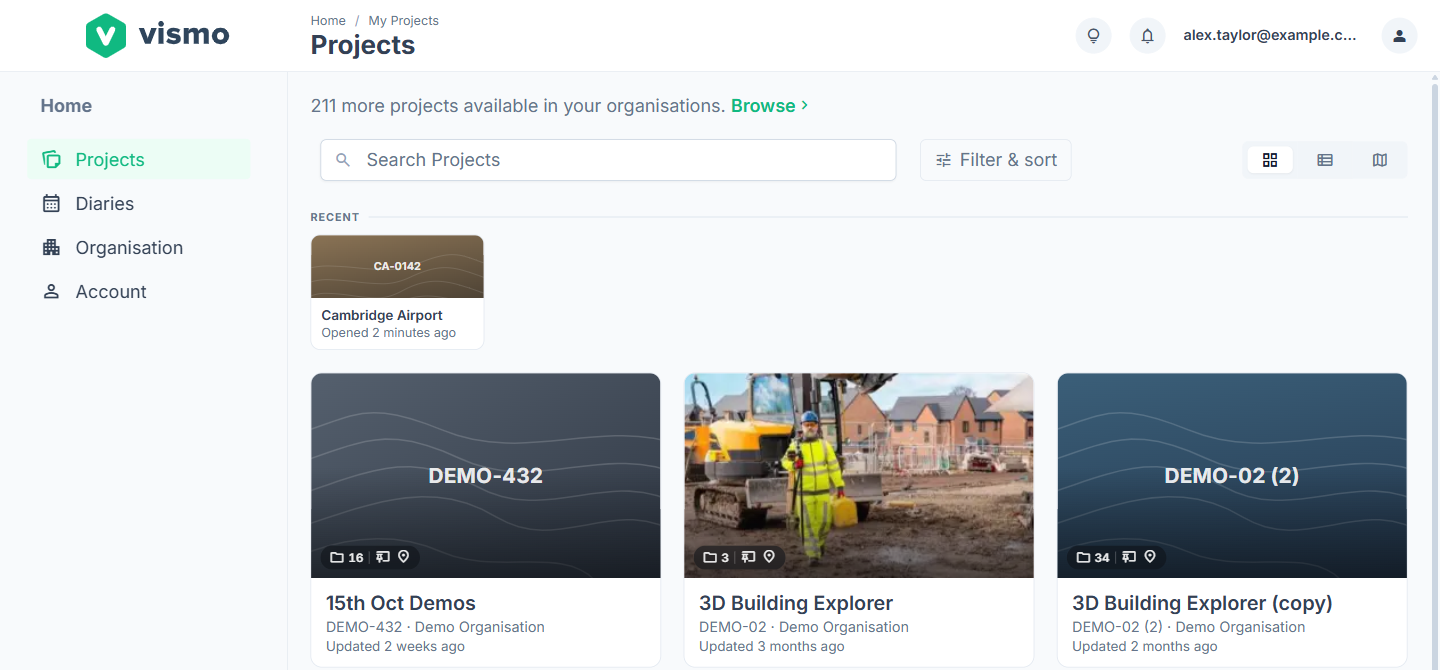
Open Projects from the left-hand menu on Home. My Projects lists every project you’re a member of. Use the Search Projects box (at least two characters) and Filter & sort to find one. Click the star on a card to pin it to Pinned & recent at the top, or Create Project to start a new one. See Create a Project.
Join a project
Step 1: Click "Browse"
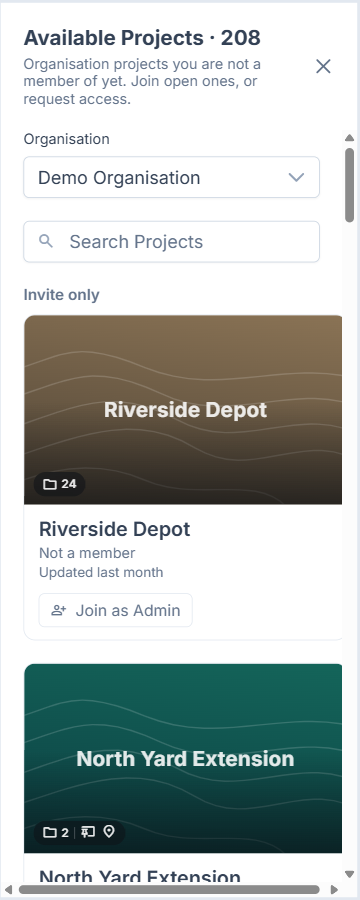
Projects you’re not a member of aren’t in My Projects. A line above your projects reads something like “3 more projects available in your organisation”. Click Browse (or the Browse link when a search finds nothing) to open Available Projects. If you belong to more than one organisation, choose one from the Organisation list at the top.
Step 2: Find the project
Each project is Open to everyone in the organisation, or Invite only. They’re grouped as Open now, Request access, Awaiting approval (projects you’ve already asked to join) and Invite only (shown to organisation Admins, who can add themselves). Clicking a project’s card gives the same button.
Step 3: Join or request access
What you can do depends on your organisation role:
| Your organisation role | Open project | Invite only project |
|---|---|---|
| Admin | Join as Admin | Join as Admin |
| Member | Join as Member | Request Access |
| Viewer | Can’t join | Can’t join or ask |
Joining shows “Joined project” and moves the project into My Projects. Requesting access shows “Access requested”, and the project sits under Awaiting approval until a project admin responds. See Project User Roles & File/Folder Permissions for what each role can do.
Hide a project from your list
On the project’s card, click Project menu and choose Hide. To see hidden projects, click Filter & sort and tick Show hidden projects, then choose Unhide in a project’s Project menu.
Good to know
- You must be an Admin or Member of the organisation that owns the project. Available Projects only lists projects from your own organisations.
- Organisation Viewers only see projects they already belong to, so ask a project admin to invite you. Archived projects can’t be joined.
- Hiding only changes your own list. You stay a member and everyone else sees the project as normal. Guests can’t hide projects.
- If you’re not sure why you can’t see a project, see Having Trouble Accessing a Project.